Qué significa cada aviso de la revisión con IA local y qué hacer. Primero, lo importante: la anonimización ya terminó y el archivo ya se guardó. Estos mensajes solo dicen que la segunda pasada con IA no corrió, o no corrió entera.
Casi todos aparecen en el reporte de revisión, debajo del documento, en la parte «Revisión con LLM local». Si todavía no configuraste la IA local, empezá por Cómo activar la IA local.
En el reporte de revisión
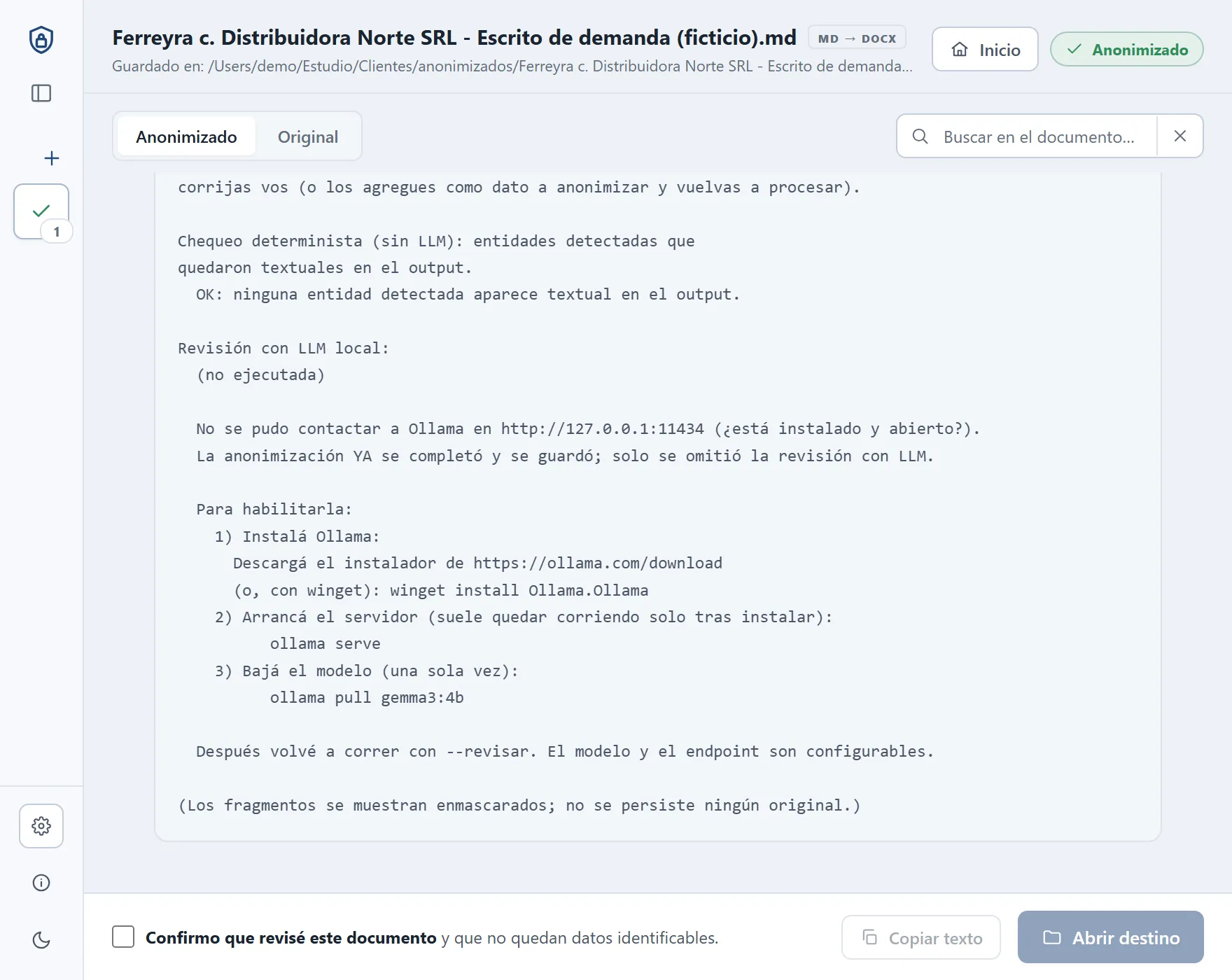
«No se pudo contactar a Ollama»
Lo que diceNo se pudo contactar a Ollama en http://127.0.0.1:11434 (¿está instalado y abierto?).
La anonimización YA se completó y se guardó; solo se omitió la revisión con LLM.
Para habilitarla:
1) Instalá Ollama:
brew install ollama (o descargá la app de https://ollama.com/download) Descargá el instalador de https://ollama.com/download
(o, con winget): winget install Ollama.Ollama
2) Arrancá el servidor (suele quedar corriendo solo tras instalar):
ollama serve
3) Bajá el modelo (una sola vez):
ollama pull gemma3:4b
Después volvé a correr con --revisar. El modelo y el endpoint son configurables.
Por qué pasa
Ollama no está instalado o no está abierto. Pasa sobre todo después de reiniciar la computadora si Ollama no arrancó solo, o si lo cerraste desde el ícono de la llamita.
Qué hacer
Abrí Ollama desde Aplicacionesdesde el menú Inicio y fijate que aparezca la llamita en la barra de menújunto al reloj. Si no lo tenés instalado, seguí el paso 1 de la guía.
No hace falta escribir ollama serve: abrir la app alcanza. «--revisar» es para la línea de comandos; en la app, volvé a procesar el documento.
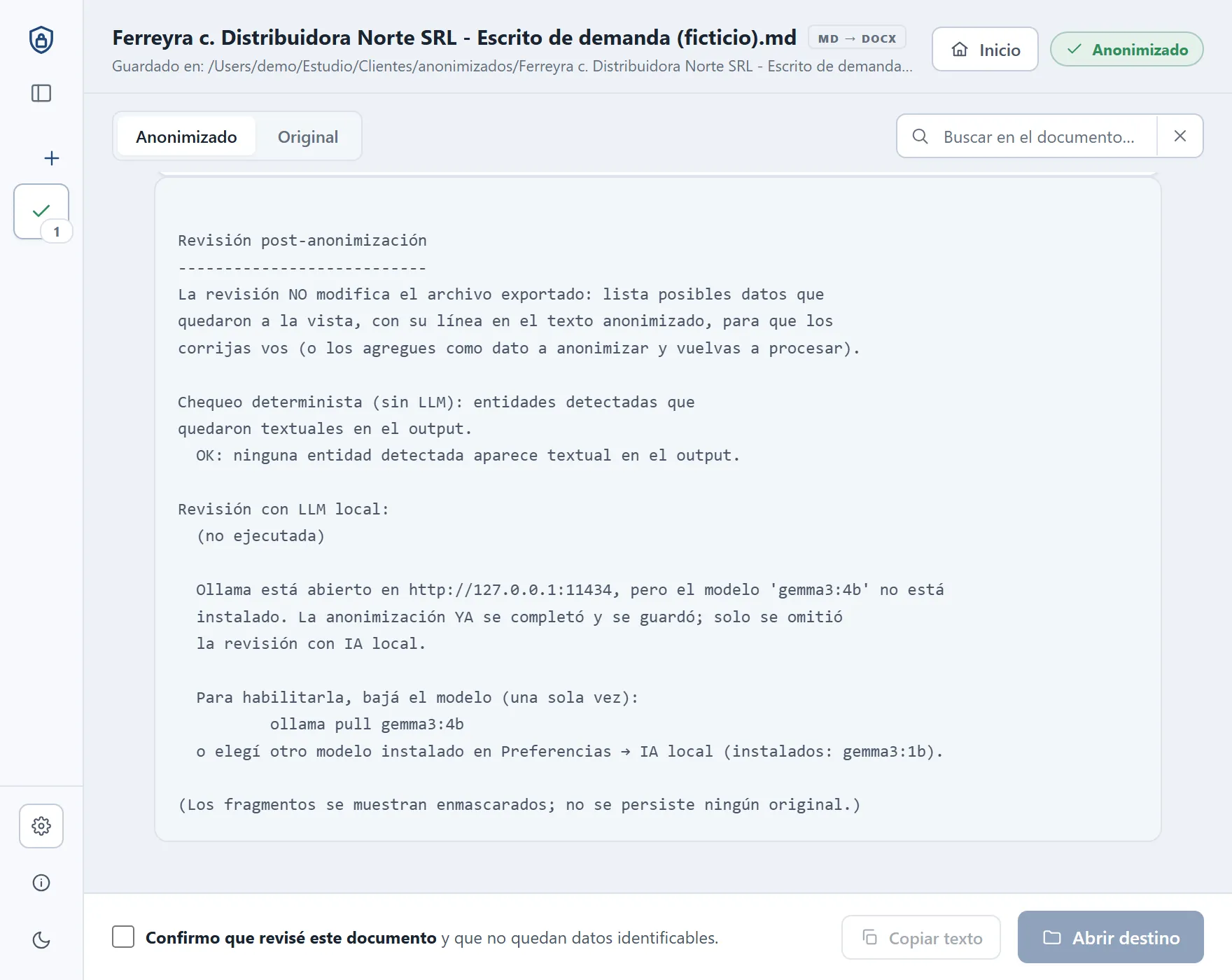
«El modelo no está instalado»
Lo que diceOllama está abierto en http://127.0.0.1:11434, pero el modelo 'gemma3:4b' no está
instalado. La anonimización YA se completó y se guardó; solo se omitió
la revisión con IA local.
Para habilitarla, bajá el modelo (una sola vez):
ollama pull gemma3:4b
o elegí otro modelo instalado en Preferencias → IA local (instalados: gemma3:1b).
Por qué pasa
Ollama funciona, pero el modelo elegido en Preferencias no está descargado: la descarga se cortó, lo borraste o lo elegiste en otra computadora. Entre paréntesis, la app lista los modelos que sí tenés.
Qué hacer
En Preferencias → IA local, tocá Descargar modelo (3,4 GB), o hacé el paso 2 de la guía. Después volvé a procesar el documento.
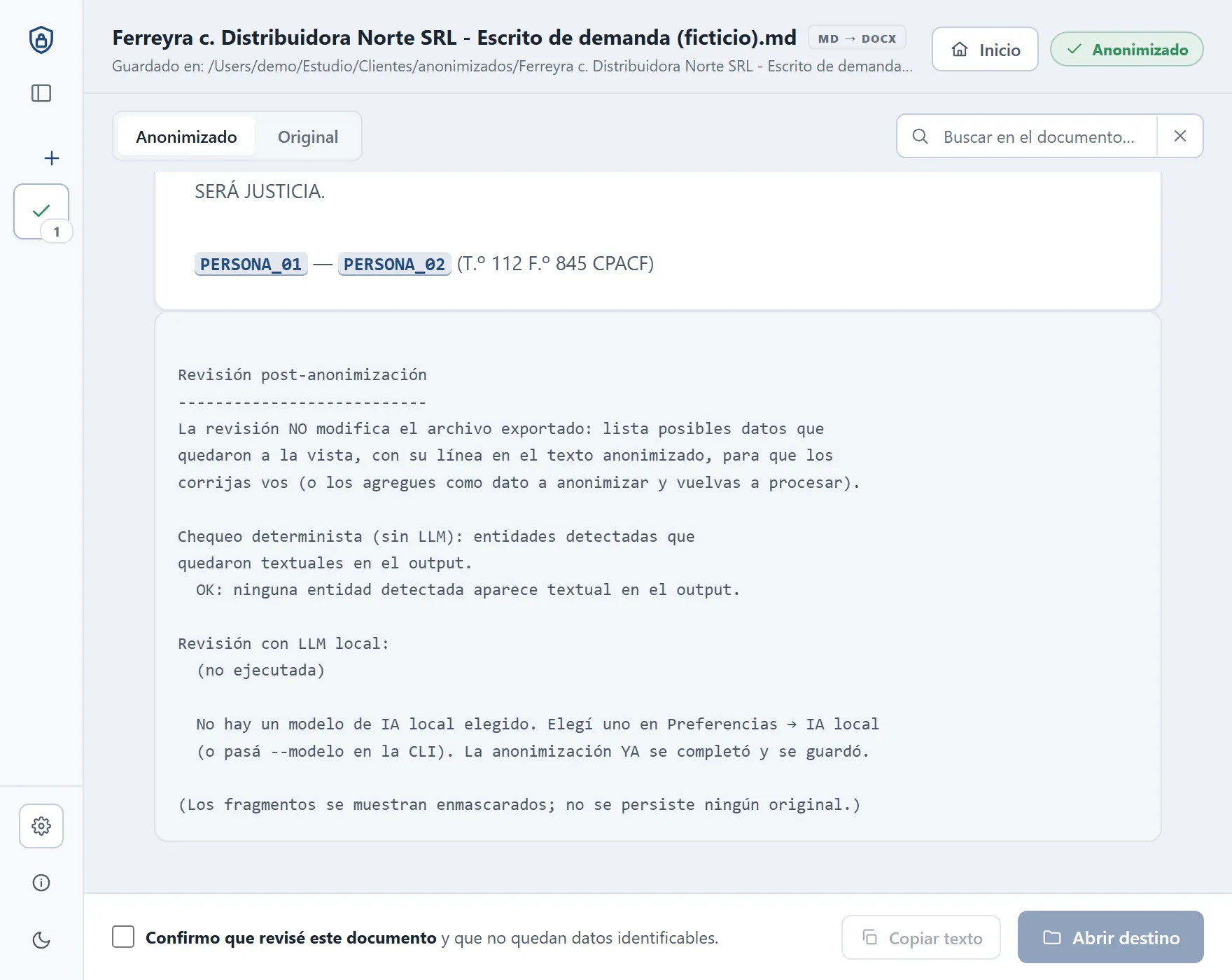
«No hay un modelo de IA local elegido»
Lo que diceNo hay un modelo de IA local elegido. Elegí uno en Preferencias → IA local
(o pasá --modelo en la CLI). La anonimización YA se completó y se guardó.
Por qué pasa
La revisión está activada, pero el campo Modelo quedó vacío.
Qué hacer
En Preferencias → IA local, elegí gemma3:4b en Modelo y tocá Guardar. Si la lista dice «(sin modelos locales)», mirá más abajo.
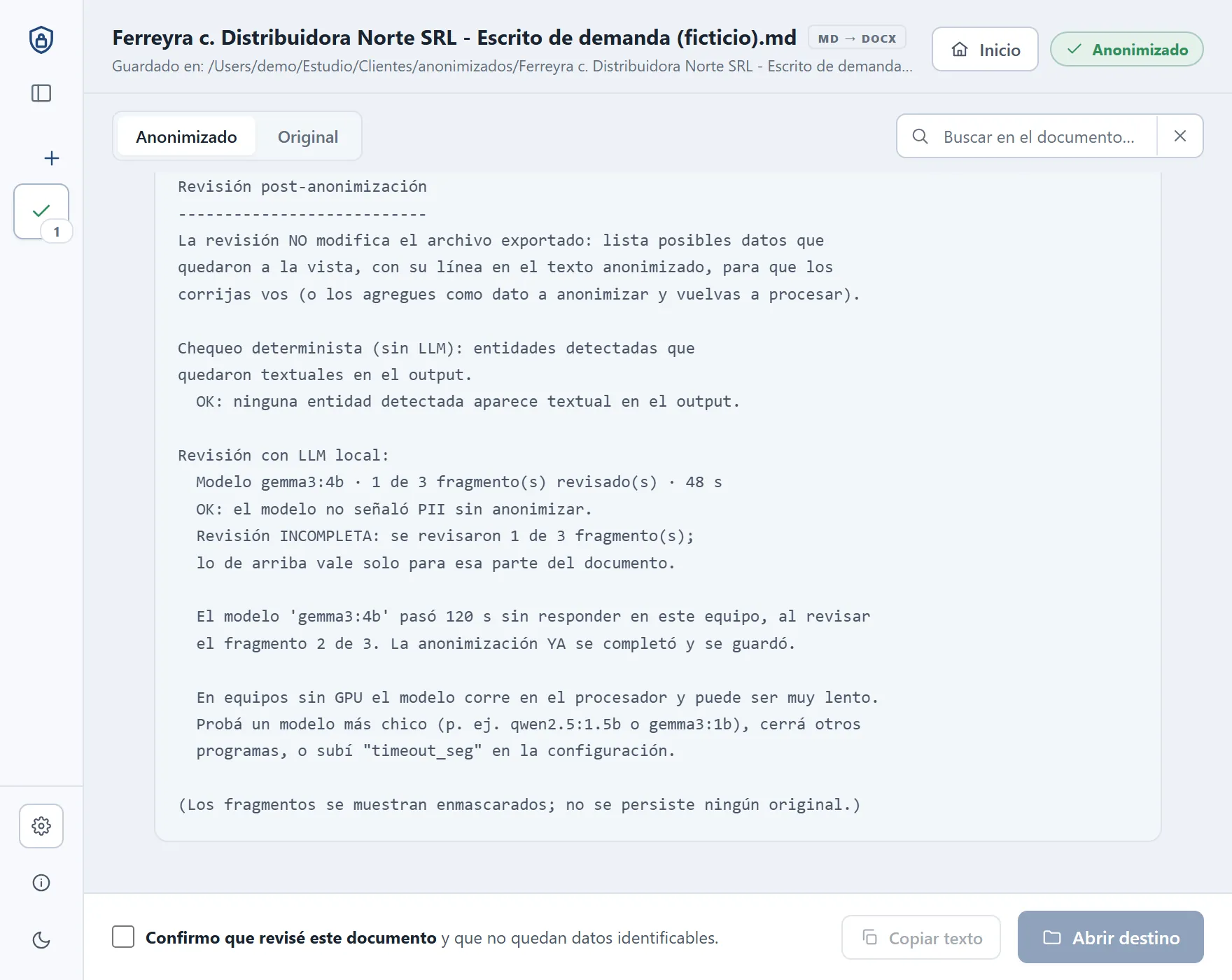
«El modelo pasó N s sin responder»
Lo que diceEl modelo 'gemma3:4b' pasó 120 s sin responder en este equipo, al revisar
el fragmento 2 de 3. La anonimización YA se completó y se guardó.
En equipos sin GPU el modelo corre en el procesador y puede ser muy lento.
Probá un modelo más chico (p. ej. qwen2.5:1.5b o gemma3:1b), cerrá otros
programas, o subí "timeout_seg" en la configuración.
Por qué pasa
El modelo es demasiado lento en este equipo: casi siempre porque corre en el procesador en vez de la placa de video. Lo que ya se había revisado queda en el reporte, marcado como INCOMPLETA.
Qué hacer
Fijate si Ollama está usando la placa de video: cómo verlo. En una PC con NVIDIA suele alcanzar con actualizar el driver.
Cerrá programas pesados y volvé a procesar.
Si tu equipo es muy lento, probá gemma3:1b (ollama pull gemma3:1b y elegilo en Preferencias → IA local): es más rápido, pero encuentra menos datos. De los dos que sugiere el mensaje, usá ese: en nuestras pruebas los modelos qwen chicos encontraron mucho menos. Si no, volvé a gemma3:4b.
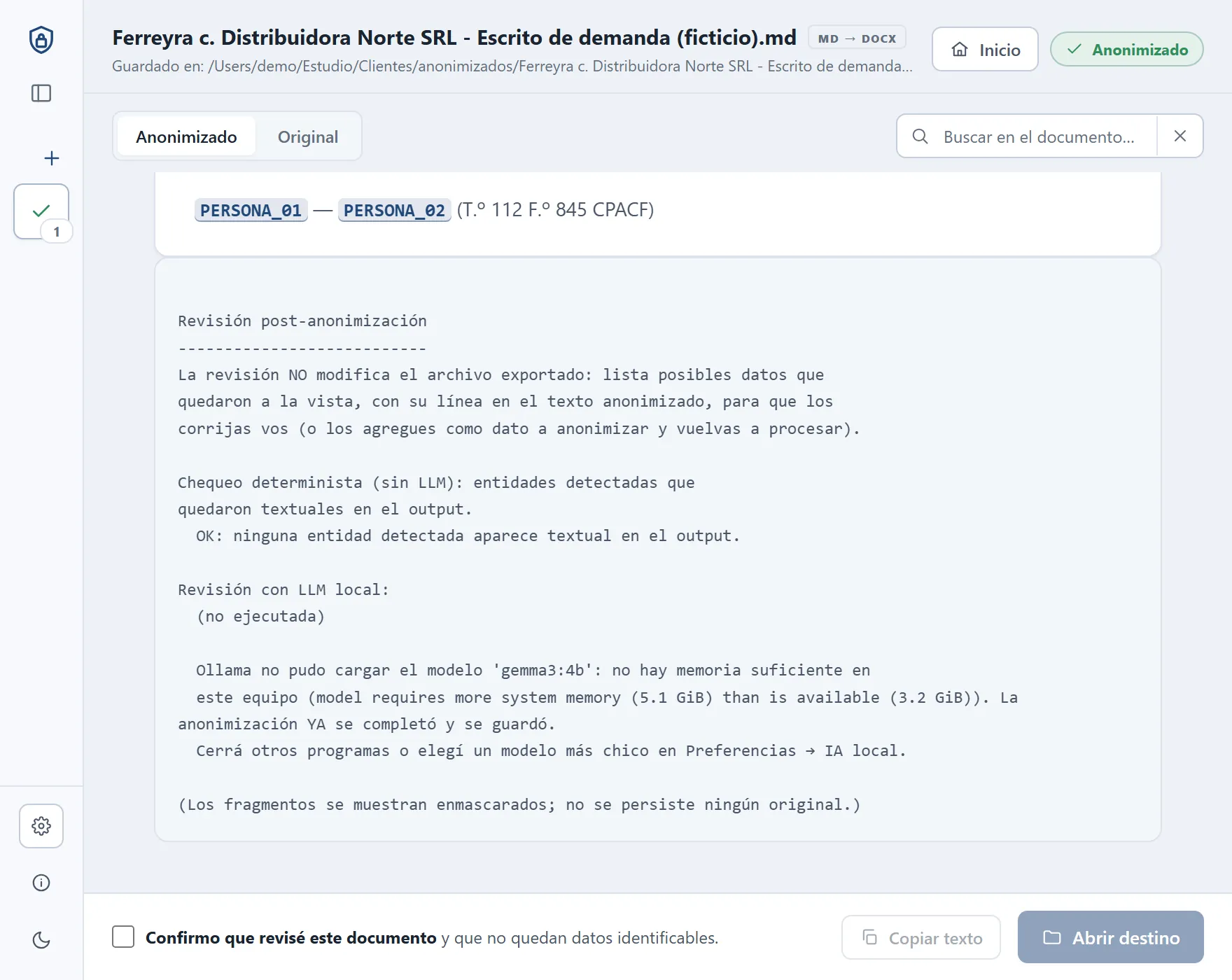
«No hay memoria suficiente»
Lo que diceOllama no pudo cargar el modelo 'gemma3:4b': no hay memoria suficiente en
este equipo (model requires more system memory (5.1 GiB) than is available (3.2 GiB)). La anonimización YA se completó y se guardó.
Cerrá otros programas o elegí un modelo más chico en Preferencias → IA local.
Por qué pasa
El modelo no entra en la memoria libre. Entre paréntesis va el detalle en inglés que devuelve Ollama: cuánta memoria pide y cuánta hay.
Qué hacer
Cerrá el navegador, Word y otros programas pesados, y volvé a procesar.
Si tenés 8 GB de RAM o menos y sigue pasando, probá gemma3:1b (ollama pull gemma3:1b): ocupa mucho menos, pero encuentra menos datos.
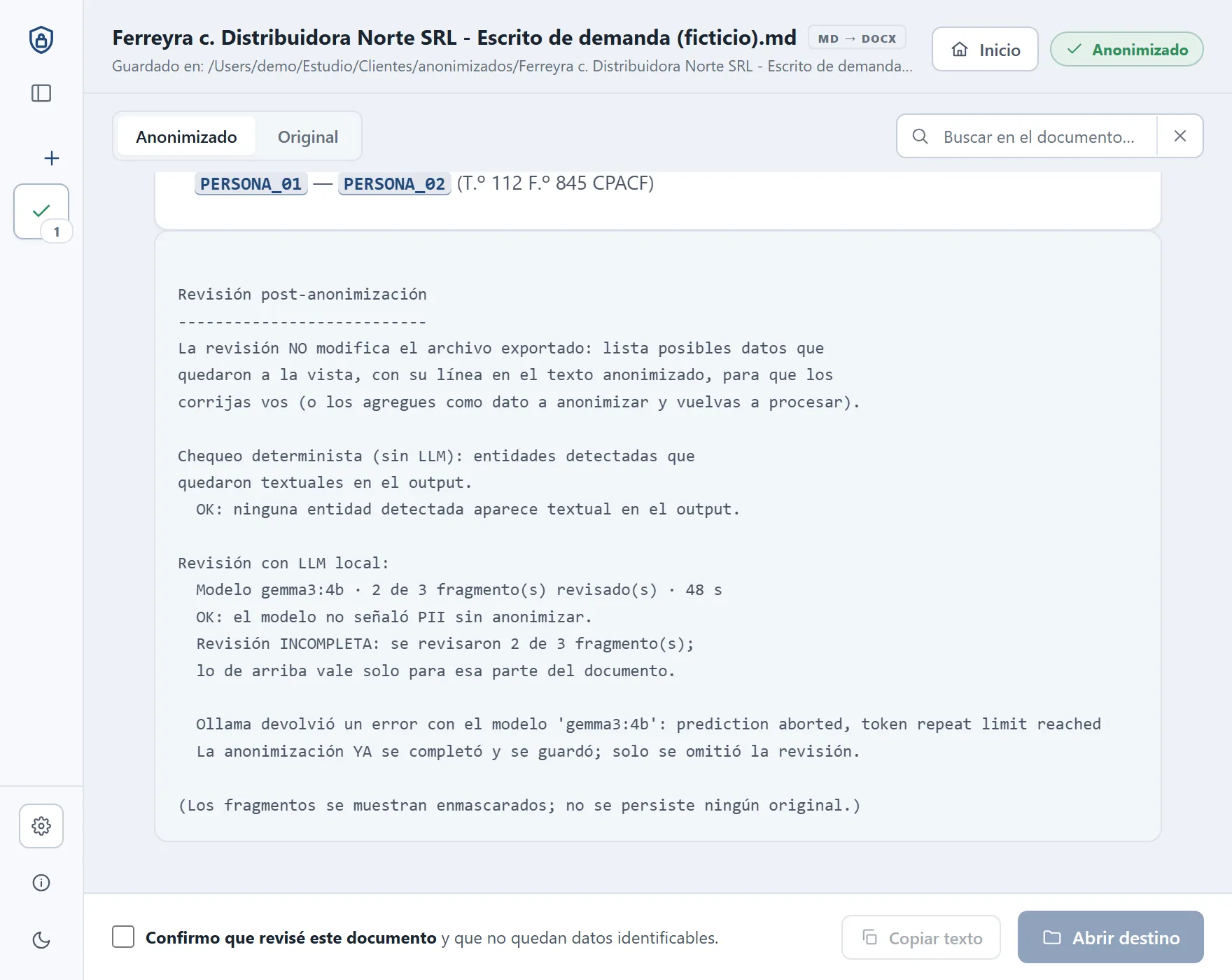
«Ollama devolvió un error»
Lo que diceOllama devolvió un error con el modelo 'gemma3:4b': prediction aborted, token repeat limit reached
La anonimización YA se completó y se guardó; solo se omitió la revisión.
Por qué pasa
Ollama respondió con un error propio. Después de los dos puntos va el detalle, en inglés, tal como lo manda Ollama.
Si dice «token repeat limit reached»: el modelo se quedó repitiendo lo mismo en un fragmento y Ollama (desde la versión 0.40) lo corta. La versión actual de Anonimizar corta la revisión; se arregla en la próxima actualización. Mientras tanto, volvé a procesar el documento o probá otro modelo.
Qué hacer con otro detalle
Cerrá Ollama desde el ícono de la llamita, abrilo de nuevo y volvé a procesar. Si se repite, escribinos con el detalle y el diagnóstico de Acerca de → Copiar diagnóstico (no incluye datos de tus documentos).
«Revisión INCOMPLETA»
Lo que diceRevisión INCOMPLETA: se revisaron 2 de 3 fragmento(s);
lo de arriba vale solo para esa parte del documento.
Resolvé el motivo que aparece abajo y volvé a procesar el documento. Ojo: «OK: el modelo no señaló PII» vale solo para los fragmentos revisados; el resto del documento no pasó por la IA.
La línea «Revisión INCOMPLETA» y, debajo, el motivo.
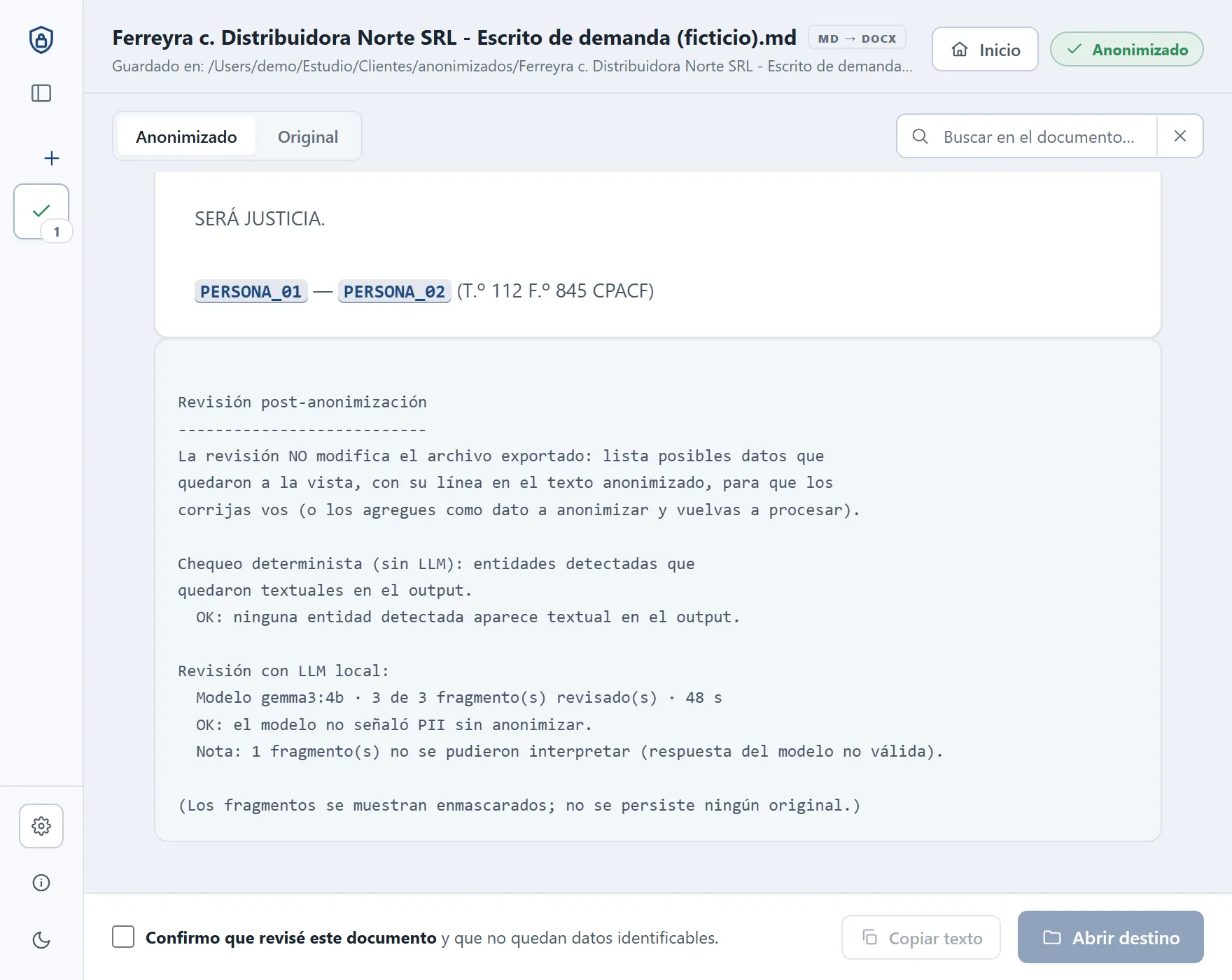
«N fragmento(s) no se pudieron interpretar»
Lo que diceNota: 1 fragmento(s) no se pudieron interpretar (respuesta del modelo no válida).
Por qué pasa
En ese fragmento el modelo contestó algo que no tiene la forma pedida. Pasa de vez en cuando, más con modelos chicos o distintos de los recomendados. Los demás fragmentos se revisaron bien.
Qué hacer
Si es uno solo, no hace falta nada: revisá ese documento a mano con más cuidado. Si pasa en muchos fragmentos, volvé a gemma3:4b en Preferencias → IA local.
En la app
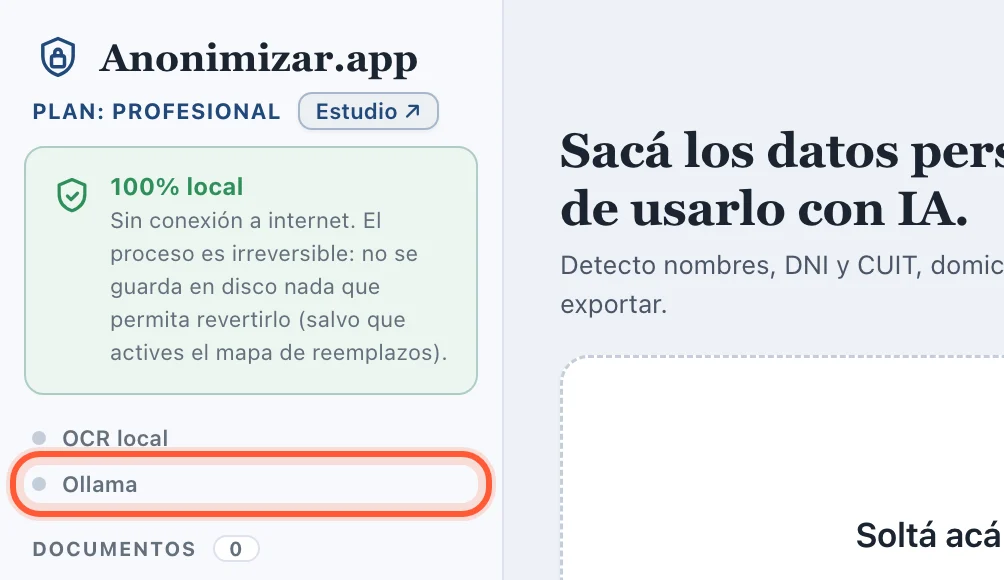
El indicador «Ollama» está gris
Por qué pasa
La app no encuentra a Ollama funcionando en tu equipo.
Qué hacer
Abrí Ollama desde Aplicacionesdesde el menú Inicio y fijate que aparezca la llamita en la barra de menújunto al reloj. Después abrí Preferencias en Anonimizar: la app vuelve a buscarlo. Si sigue gris, cerrá Anonimizar y abrila de nuevo.
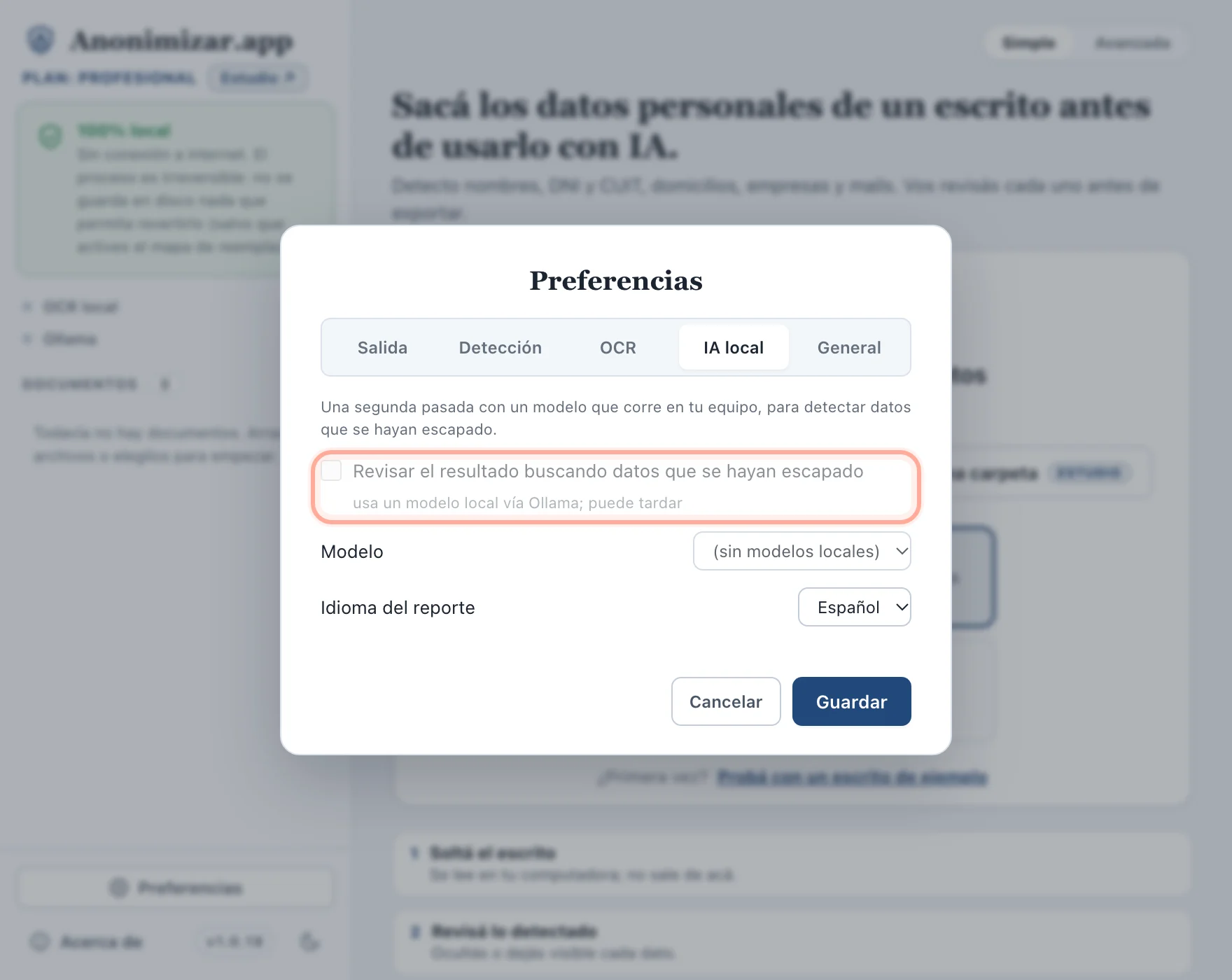
El modelo dice «(sin modelos locales)»
Por qué pasa
Ollama no tiene ningún modelo descargado, o la app todavía no lo vio. Mientras tanto, la casilla de la revisión queda gris.
Qué hacer
Tocá Descargar modelo en esa misma pestaña, o hacé el paso 2 de la guía. Después cerrá y volvé a abrir Preferencias.
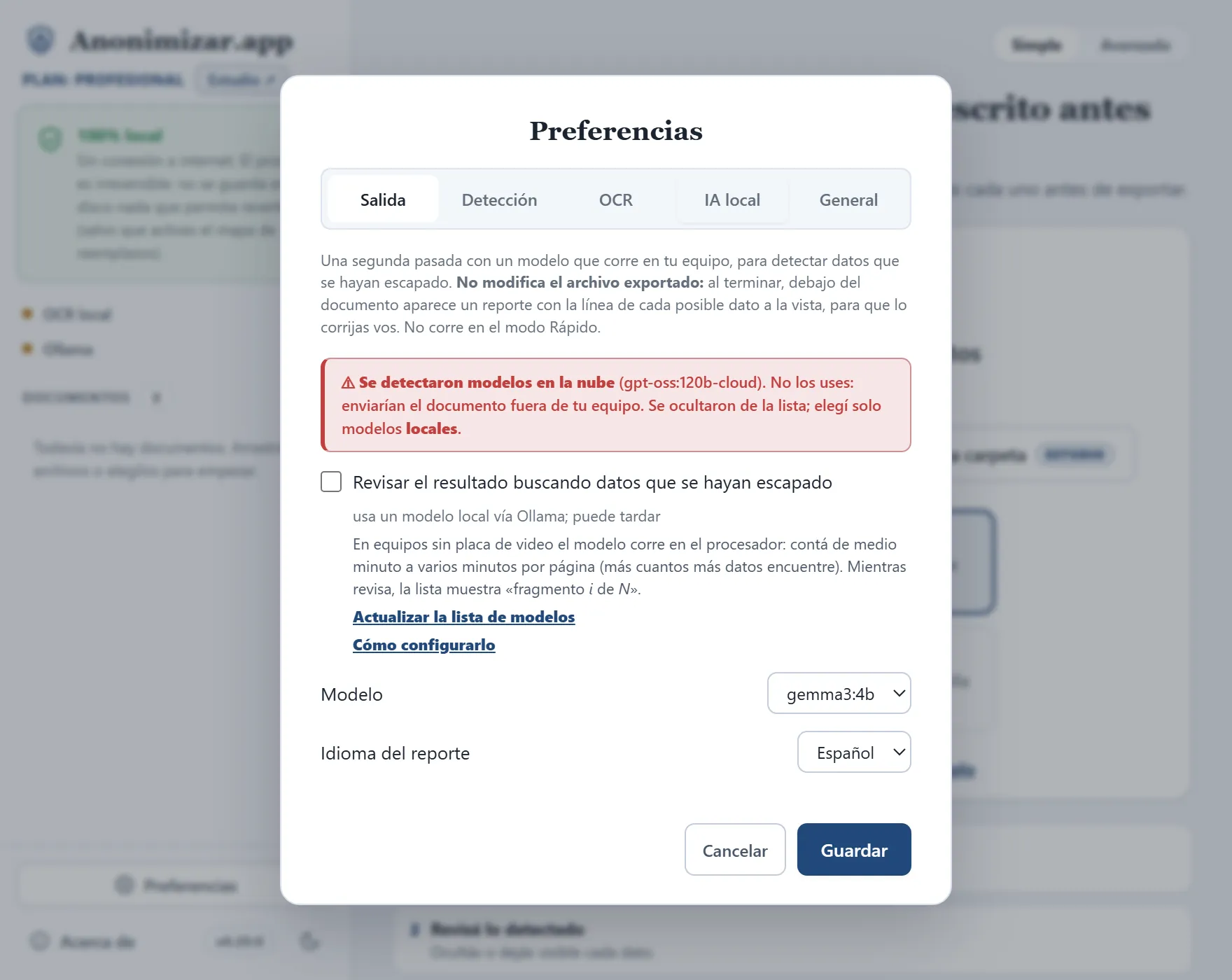
Aviso rojo: «Se detectaron modelos en la nube»
Por qué pasa
En Ollama hay modelos que corren en sus servidores (su nombre termina en -cloud). Usarlos mandaría el documento afuera, así que Anonimizar los esconde de la lista y te avisa.
Qué hacer
Elegí un modelo local, como gemma3:4b. Para sacar el de la nube: ollama rm y el nombre (por ejemplo, ollama rm gpt-oss:120b-cloud). Para bloquear la nube en ese equipo, mirá Privacidad en la guía.
La revisión tarda mucho
Por qué pasa
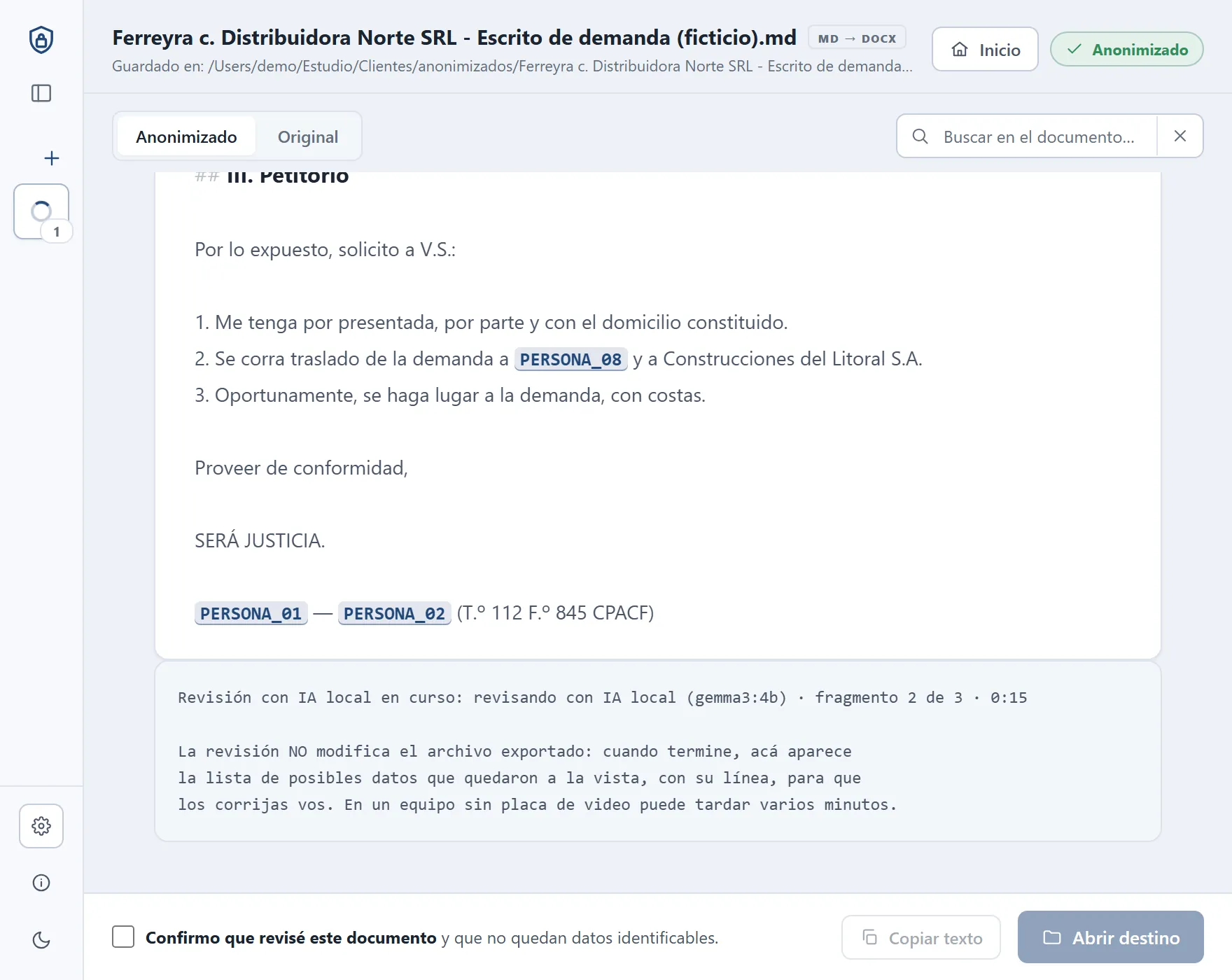
Es normal la primera vez (el modelo se carga en memoria) y en documentos largos: mientras tanto, el reporte muestra «fragmento i de N» y el tiempo. Pero si cada fragmento tarda minutos, lo más probable es que Ollama esté usando el procesador y no la placa de video.
Cómo ver si usa la placa de video
Mientras corre una revisión (o hasta 5 minutos después), abrí la TerminalPowerShell y escribí:
TerminalPowerShell
ollama ps
NAME ID SIZE PROCESSOR CONTEXT UNTIL
gemma3:4b a2af6cc3eb7f 6.0 GB 100% GPU 8192 4 minutes from now
Mirá la columna PROCESSOR: 100% GPU está bien. 100% CPU (o un reparto como 48%/52% CPU/GPU) quiere decir que corre en el procesador, y ahí puede tardar varios minutos por página.
Qué hacer
PC con placa NVIDIA: actualizá el driver (desde la app NVIDIA App o nvidia.com), después cerrá Ollama desde el ícono de la llamita, abrilo de nuevo y repetí ollama ps. Lo vimos en una PC con una RTX 5060 Ti que corría todo en el procesador hasta actualizar el driver.
Mac con chip Apple (M1 o posterior): Ollama usa la placa de video solo. En una Mac con Intel corre en el procesador y va a ser lenta.
Cerrá programas pesados mientras procesás.
Si no tenés placa de video y tarda demasiado, probá gemma3:1b (más rápido, pero encuentra menos datos) o apagá la casilla en Preferencias → IA local cuando tengas apuro.
Mientras revisa, el reporte muestra el fragmento y el tiempo.
En la Terminal o PowerShell
«ollama: command not found» o «ollama no se reconoce como comando»
TerminalPowerShell
ollama pull gemma3:4b
zsh: command not found: ollama
ollama : El término 'ollama' no se reconoce como nombre de un cmdlet, función,
archivo de script o programa ejecutable.
Por qué pasa
La Terminal no encuentra el comando: falta instalar la herramienta de línea de comandos de Ollama.La ventana de PowerShell se abrió antes de instalar Ollama y no conoce el comando nuevo.
Qué hacer
Abrí la app Ollama una vez y aceptá cuando te ofrezca instalar la línea de comandos. Después cerrá la Terminal, abrila de nuevo y repetí el comando.
Cerrá PowerShell y abrilo de nuevo. Si sigue igual, reiniciá la computadora.
O no uses la Terminal: el botón Descargar modelo de Preferencias → IA local hace lo mismo.
¿Ves otro mensaje?
Escribinos a hola@anonimizar.app con el texto del aviso y el diagnóstico de Acerca de → Copiar diagnóstico. No mandes documentos reales.
What each local AI review warning means and what to do. First, the important part: anonymization already finished and the file is already saved. These messages only say the second AI pass didn't run, or didn't run all the way.
Most of them show up in the review report, below the document, under «Local LLM review». The app is in Spanish; the report comes in English if Preferencias → IA local → Idioma del reporte (report language) is set to English, which is how they're quoted here. If you haven't set up local AI yet, start with Turn on local AI.
In the review report
«Could not reach Ollama»
What it saysCould not reach Ollama at http://127.0.0.1:11434 (is it installed and running?).
Anonymization is ALREADY done and saved; only the LLM review was skipped.
To enable it:
1) Install Ollama:
brew install ollama (or download the app from https://ollama.com/download) Download the installer from https://ollama.com/download
(or, with winget): winget install Ollama.Ollama
2) Start the server (it usually keeps running after install):
ollama serve
3) Pull the model (one time only):
ollama pull gemma3:4b
Then run again with --revisar. The model and endpoint are configurable.
Why it happens
Ollama isn't installed or isn't open. It happens mostly after restarting the computer if Ollama didn't start on its own, or if you quit it from the llama icon.
What to do
Open Ollama from Applicationsfrom the Start menu and check that the llama shows up in the menu barnext to the clock. If it isn't installed, follow step 1 of the guide.
You don't need to type ollama serve: opening the app is enough. «--revisar» is for the command line; in the app, process the document again.
«The model is not installed»
What it saysOllama is running at http://127.0.0.1:11434, but the model 'gemma3:4b' is not
installed. Anonymization is ALREADY done and saved; only the local AI
review was skipped.
To enable it, pull the model (one time only):
ollama pull gemma3:4b
or pick another installed model in Preferences → Local AI (installed: gemma3:1b).
Why it happens
Ollama is running, but the model selected in Preferencias isn't downloaded: the download was interrupted, you deleted it, or you picked it on another computer. In brackets, the app lists the models you do have.
What to do
In Preferencias → IA local, click Descargar modelo (3,4 GB) (download model), or do step 2 of the guide. Then process the document again.
«No local AI model is selected»
What it saysNo local AI model is selected. Pick one in Preferences → Local AI
(or pass --modelo in the CLI). Anonymization is ALREADY done and saved.
Why it happens
The review is on, but the Modelo (model) field is empty.
What to do
In Preferencias → IA local, pick gemma3:4b under Modelo and click Guardar (save). If the list says «(sin modelos locales)», see below.
«The model went N s without answering»
What it saysThe model 'gemma3:4b' went 120 s without answering on this computer while
reviewing fragment 2 of 3. Anonymization is ALREADY done and saved.
On computers without a GPU the model runs on the CPU and can be very slow.
Try a smaller model (e.g. qwen2.5:1.5b or gemma3:1b), close other programs,
or raise "timeout_seg" in the configuration.
Why it happens
The model is too slow on this computer: almost always because it runs on the processor instead of the graphics card. What was already reviewed stays in the report, marked INCOMPLETE.
What to do
Check whether Ollama is using the graphics card: how to check. On a PC with NVIDIA, updating the driver is usually enough.
Close heavy programs and process again.
If your computer is very slow, try gemma3:1b (ollama pull gemma3:1b and pick it in Preferencias → IA local): it's faster but finds less. Of the two the message suggests, use that one: in our tests the small qwen models found far less. Otherwise go back to gemma3:4b.
«Not enough memory»
What it saysOllama could not load the model 'gemma3:4b': not enough memory on this
computer (model requires more system memory (5.1 GiB) than is available (3.2 GiB)). Anonymization is ALREADY done and saved.
Close other programs or pick a smaller model in Preferences → Local AI.
Why it happens
The model doesn't fit in free memory. In brackets is Ollama's own detail: how much memory it needs and how much there is.
What to do
Close the browser, Word and other heavy programs, and process again.
If you have 8 GB of RAM or less and it keeps happening, try gemma3:1b (ollama pull gemma3:1b): it takes much less memory but finds less.
«Ollama returned an error»
What it saysOllama returned an error with the model 'gemma3:4b': prediction aborted, token repeat limit reached
Anonymization is ALREADY done and saved; only the review was skipped.
Why it happens
Ollama answered with an error of its own. After the colon comes the detail, exactly as Ollama sends it.
If it says «token repeat limit reached»: the model got stuck repeating itself on one fragment and Ollama (since version 0.40) cuts it off. The current version of Anonimizar stops the review; it's fixed in the next update. Meanwhile, process the document again or try another model.
What to do with any other detail
Quit Ollama from the llama icon, open it again and process again. If it repeats, write to us with the detail and the diagnostics from Acerca de → Copiar diagnóstico (About → Copy diagnostics; no data from your documents).
«INCOMPLETE review»
What it saysINCOMPLETE review: 2 of 3 fragment(s) were reviewed;
the above only covers that part of the document.
Fix the reason shown below it and process the document again. Note: «OK: the model flagged no un-anonymized PII» covers only the reviewed fragments; the rest of the document never went through the AI.
The «Revisión INCOMPLETA» line and, below it, the reason.
«N fragment(s) could not be parsed»
What it saysNote: 1 fragment(s) could not be parsed (invalid model response).
Why it happens
On that fragment the model answered something that isn't in the requested shape. It happens now and then, more with small models or models other than the recommended one. The other fragments were reviewed fine.
What to do
If it's just one, nothing: review that document by hand a bit more carefully. If it happens on many fragments, go back to gemma3:4b in Preferencias → IA local.
In the app
The «Ollama» indicator is grey
Why it happens
The app can't find Ollama running on your computer.
What to do
Open Ollama from Applicationsfrom the Start menu and check that the llama shows up in the menu barnext to the clock. Then open Preferencias in Anonimizar: the app looks for it again. If it's still grey, quit Anonimizar and open it again.
The model says «(sin modelos locales)» (no local models)
Why it happens
Ollama has no model downloaded, or the app hasn't seen it yet. Meanwhile the review box stays greyed out.
What to do
Click Descargar modelo (download model) on that same tab, or do step 2 of the guide. Then close and reopen Preferencias.
Red warning: «Se detectaron modelos en la nube» (cloud models detected)
Why it happens
Ollama has models that run on its servers (their names end in -cloud). Using them would send the document out, so Anonimizar hides them from the list and warns you.
What to do
Pick a local model, like gemma3:4b. To remove the cloud one: ollama rm plus the name (for example, ollama rm gpt-oss:120b-cloud). To block the cloud on that computer, see Privacy in the guide.
The review takes a long time
Why it happens
It's normal the first time (the model loads into memory) and on long documents: meanwhile the report shows «fragmento i de N» (chunk i of N) and the time. But if each fragment takes minutes, Ollama is most likely using the processor instead of the graphics card.
How to check whether it uses the graphics card
While a review is running (or up to 5 minutes after), open TerminalPowerShell and type:
TerminalPowerShell
ollama ps
NAME ID SIZE PROCESSOR CONTEXT UNTIL
gemma3:4b a2af6cc3eb7f 6.0 GB 100% GPU 8192 4 minutes from now
Look at the PROCESSOR column: 100% GPU is good. 100% CPU (or a split like 48%/52% CPU/GPU) means it runs on the processor, and then it can take several minutes per page.
What to do
PC with an NVIDIA card: update the driver (from the NVIDIA App or nvidia.com), then quit Ollama from the llama icon, open it again and repeat ollama ps. We saw a PC with an RTX 5060 Ti running everything on the processor until the driver was updated.
Mac with an Apple chip (M1 or later): Ollama uses the graphics card on its own. On an Intel Mac it runs on the processor and will be slow.
Close heavy programs while processing.
Without a graphics card, if it's too slow, try gemma3:1b (faster, but finds less) or untick the box in Preferencias → IA local when you're in a hurry.
While it reviews, the report shows the fragment and the time.
In Terminal or PowerShell
«ollama: command not found» or «ollama is not recognized»
TerminalPowerShell
ollama pull gemma3:4b
zsh: command not found: ollama
ollama : The term 'ollama' is not recognized as the name of a cmdlet, function,
script file, or operable program.
Why it happens
Terminal can't find the command: Ollama's command line tool isn't installed.The PowerShell window was opened before installing Ollama and doesn't know the new command.
What to do
Open the Ollama app once and accept when it offers to install the command line tool. Then close Terminal, open it again and repeat the command.
Close PowerShell and open it again. If it still fails, restart your computer.
Or skip the terminal: the Descargar modelo button in Preferencias → IA local does the same.
Seeing a different message?
Email us at hola@anonimizar.app with the warning text and the diagnostics from Acerca de → Copiar diagnóstico. Don't send real documents.